
Tool Integration
1. Supported Tools
Coding Agent Tools
Click and enter the documentation for the tool you want to use below, and follow the corresponding integration guide.




General Agent Tools

2. Coding Endpoints
Coding Flow protocol endpoints for different coding tools:
| Protocol | Endpoint URL |
|---|---|
| OpenAI Chat Completions | https://api.codingflow.ai/v1 |
| Anthropic Messages | https://api.codingflow.ai |
| Google Gemini | https://api.codingflow.ai |
Please select the correct endpoint URL based on the tool you are using. Incorrect endpoint configuration
will prevent you from using the Coding Flow subscription quota.
3. Configuration Examples
General Configuration Steps
- Find the API model configuration entry in your tool
- Select the model provider
- Enter the API Key and select the model
The following example uses Kilo Code to demonstrate how to connect via the OpenAI protocol. Similarly, other tools that support the OpenAI protocol can use the same configuration approach.
Kilo Code
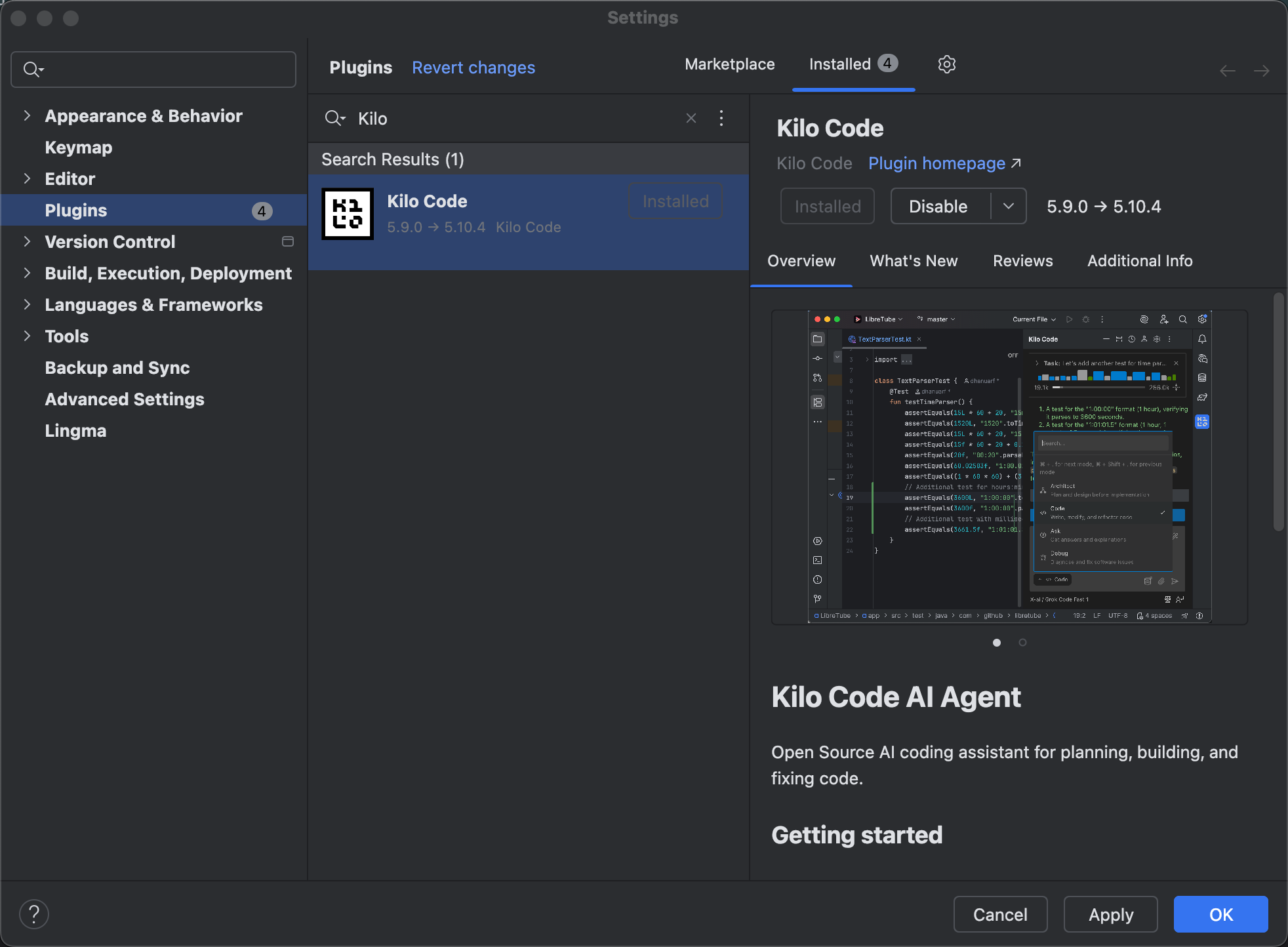
1. Install the Kilo Code Plugin
Using JetBrains as an example, search for the Kilo Code plugin in the plugin marketplace and install it.
2. Configure the Kilo Code Plugin
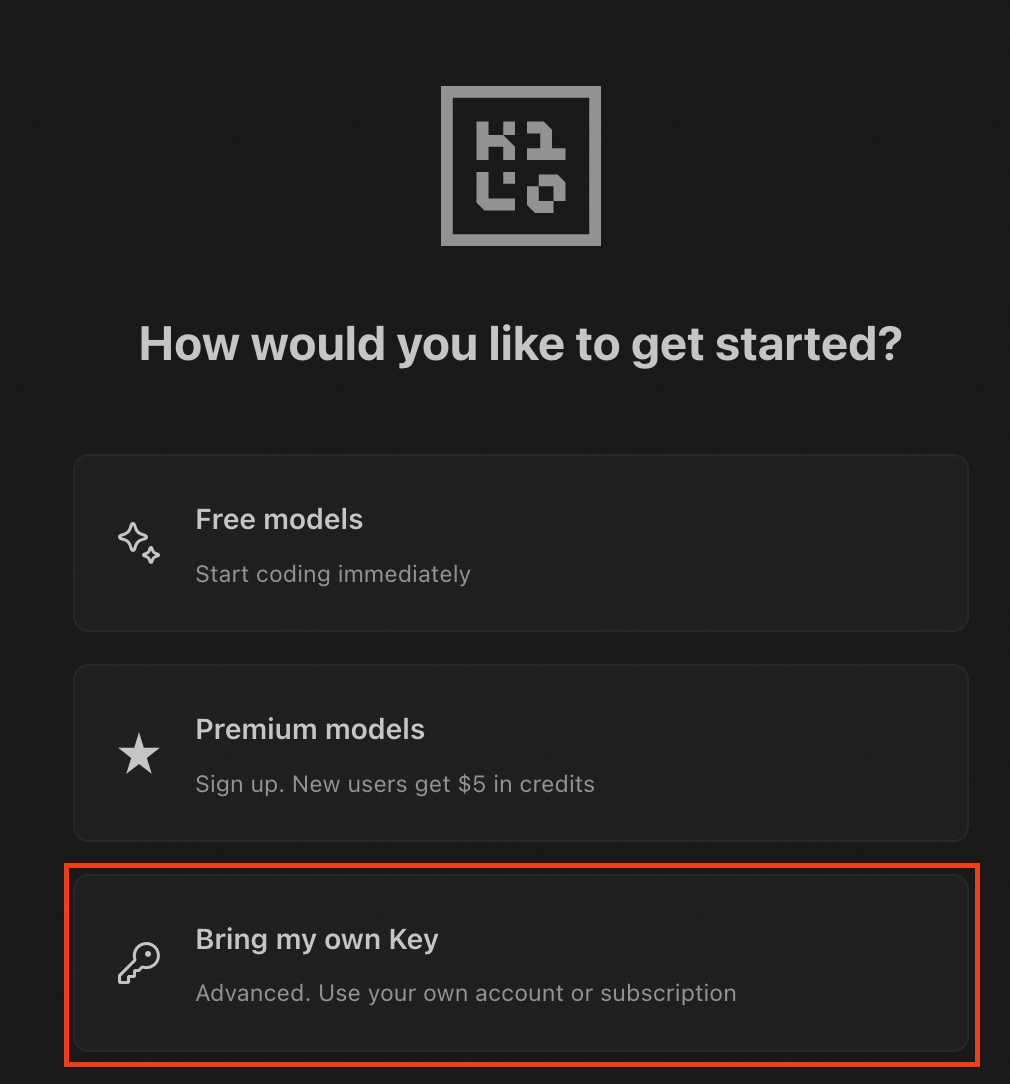
Select "Bring my own Key".
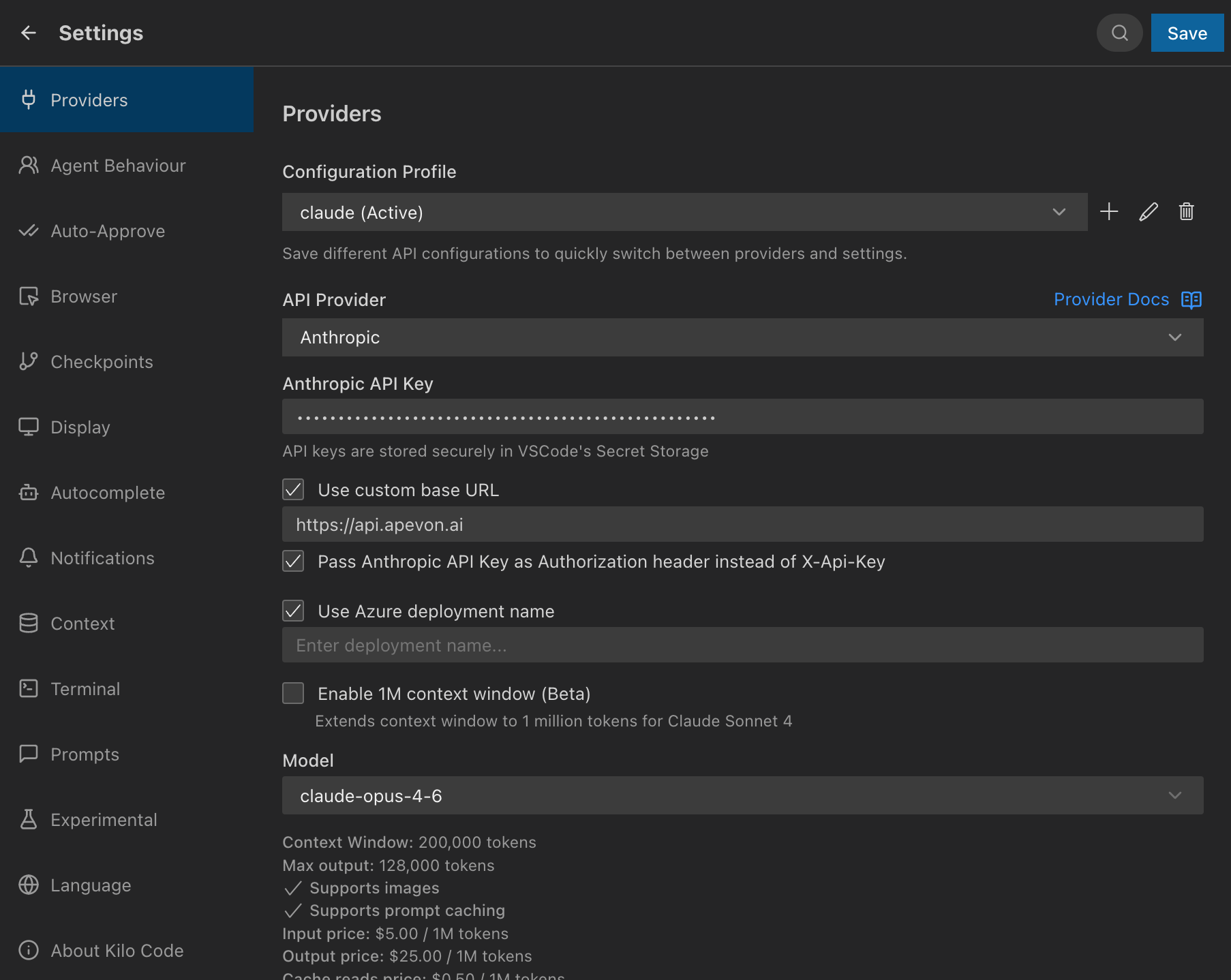
Fill in the relevant information as follows:
- API Provider: Anthropic
- Base URL: https://api.codingflow.ai
- API Key: Create a new API Key via the Coding Flow Console, in the format
sk-apv-cp-xxxxxx. - Model: Enter a supported model from the Coding Flow documentation, then click "Use custom".
3. Save and Switch Models
After configuration, save the settings and select the Provider you just created on the main page.
4. Start Using
With this setup, you can start using the models for code generation, debugging, task analysis, and more.