
Cursor Setup Guide
Configure an OpenAI-compatible endpoint in Cursor to use models and an API key provided by Coding Flow.
Prerequisites
- A valid API Key (e.g.
sk-******) - An accessible service address (Base URL) (usually provided by your deployment/gateway)
- An active Cursor membership with access to custom API key and model settings
- A network connection that can access Cursor services; a proxy or VPN may be required
Common Service Endpoint for This Site
Configure the API Key and Base URL
- Open Cursor and go to Cursor Settings.
- Select Models, then find the API Keys or OpenAI API configuration section.
- Enter your Coding Flow API key.
- Enable Override OpenAI Base URL and enter:
https://api.codingflow.ai/v1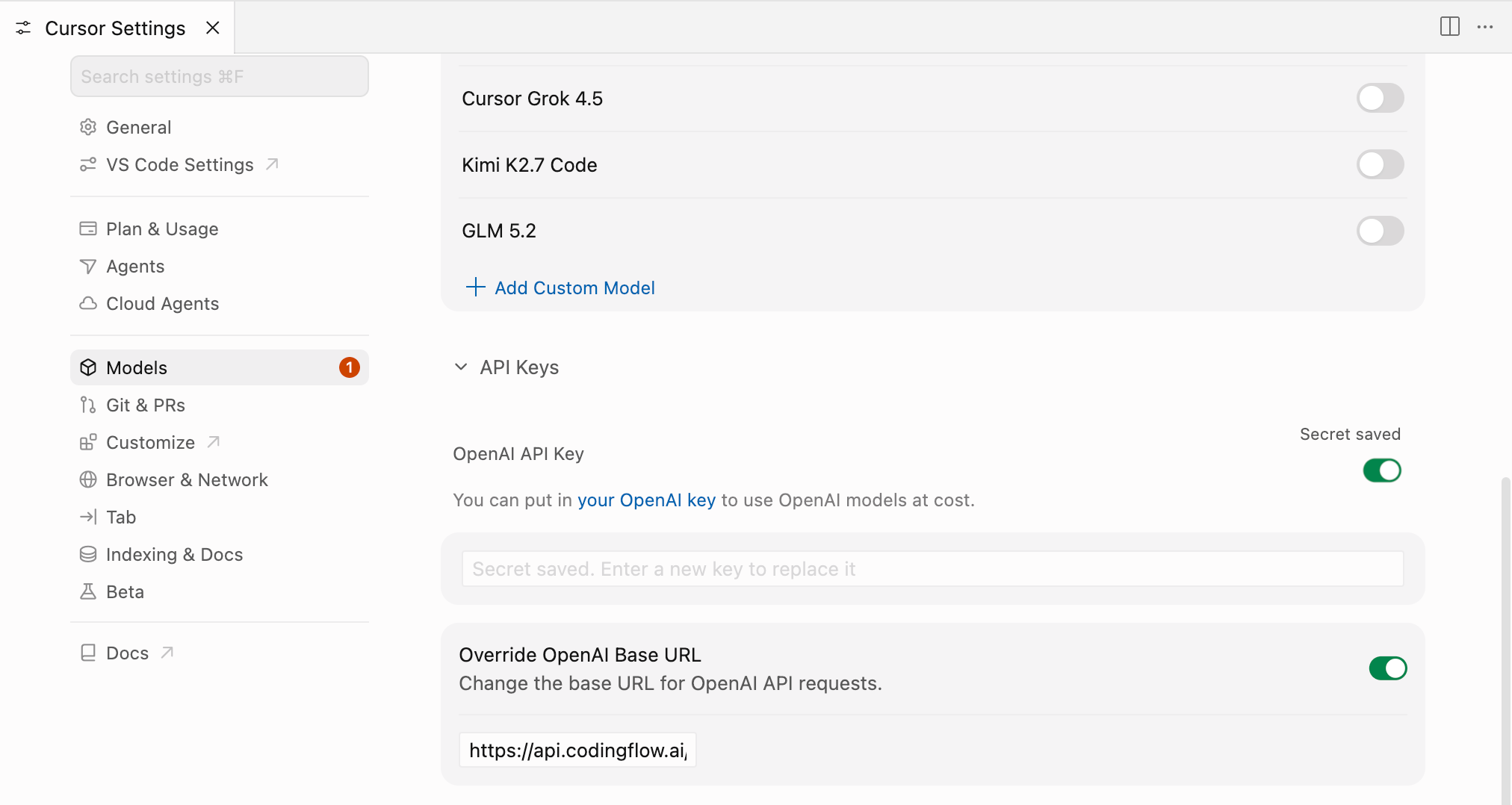
Base URL requirements
- The Base URL must be
https://api.codingflow.ai/v1. - Do not include a specific endpoint such as
/chat/completions. - Include
/v1exactly once. Do not enterhttps://api.codingflow.ai/v1/v1.
Add a Model
On the Models page, select Add custom model and enter the model ID. When using Coding Flow with Cursor, add the tocursor- prefix to the platform's default model name:
tocursor-<platform-model-name>For example, if the platform model name is gpt-5.4, enter the following in Cursor:
tocursor-gpt-5.4The configured custom model should look like this:

See the model list for supported model names. After saving, select the new model in the Cursor Chat or Agent model picker.
Model name requirements
tocursor-must be lowercase and must be added exactly once.- The value after the prefix must be a model ID supported by Coding Flow, not its display name.
- Do not enter
tocursor-tocursor-gpt-5.4or include spaces in the model name. - If a platform model is renamed or removed, update the custom model in Cursor accordingly.
Before You Start
- Select the custom
tocursor-model you configured to avoid accidentally using a built-in Cursor model and a different account quota. - Custom API keys primarily apply to OpenAI-compatible model requests in Cursor Chat and Agent. Tab completion, some built-in features, or Cursor-hosted capabilities may not use Coding Flow.
- Setting names and locations may vary slightly between Cursor versions. Update Cursor first, then search Settings for
OpenAIorBase URLif needed. - Keep the API key on trusted devices. Do not place it in project files, screenshots, chat messages, or Git commits.
- Start with a short test request and confirm that the model responds before using it for large code changes.
Troubleshooting
Model Not Found
Make sure the model name starts with tocursor- and that the remaining model ID exactly matches the Coding Flow model list. For example:
tocursor-gpt-5.4Coding Flow Quota Is Not Used
Confirm that the conversation is using your custom tocursor- model rather than a built-in Cursor model. After switching models, start a new conversation and try again.
Errors Continue After Updating the Configuration
Check that the API key is complete, the Base URL is https://api.codingflow.ai/v1, the Cursor membership is active, and the network can reach both Cursor and Coding Flow. Then close the current conversation and start a new one. If the configuration still does not take effect, quit and restart Cursor.