
WorkBuddy Setup Guide
Add a custom model in WorkBuddy and connect it to the Coding Flow platform through an OpenAI-compatible endpoint.
For product details, see the official WorkBuddy model configuration documentation.
Prerequisites
- A valid API Key (e.g.
sk-******) - An accessible service address (Base URL) (usually provided by your deployment/gateway)
- The latest version of WorkBuddy, installed and signed in
Common Service Endpoint for This Site
Add a Custom Model
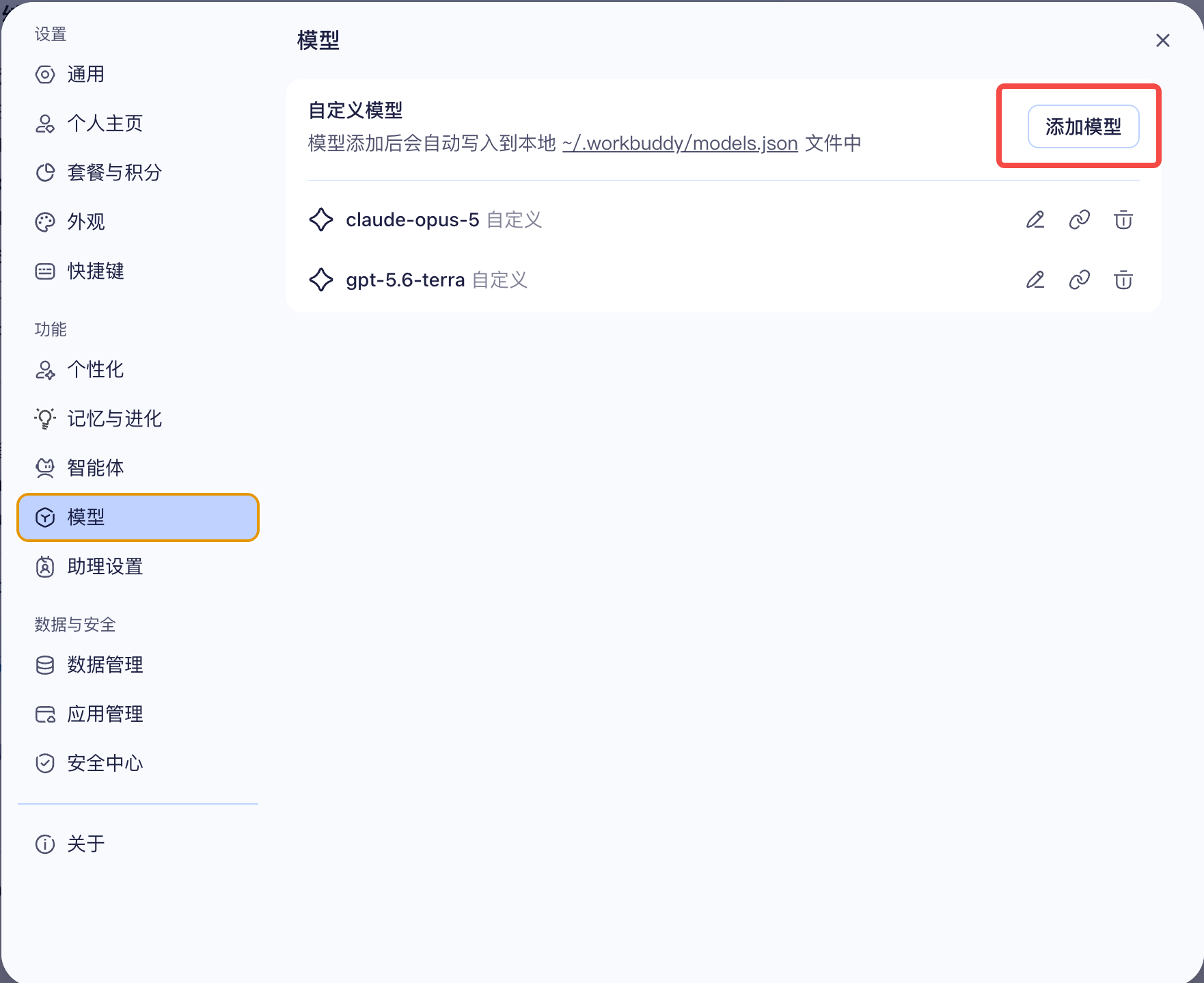
- Open WorkBuddy and go to Settings.
- Select Models, then add a model in the custom models section.
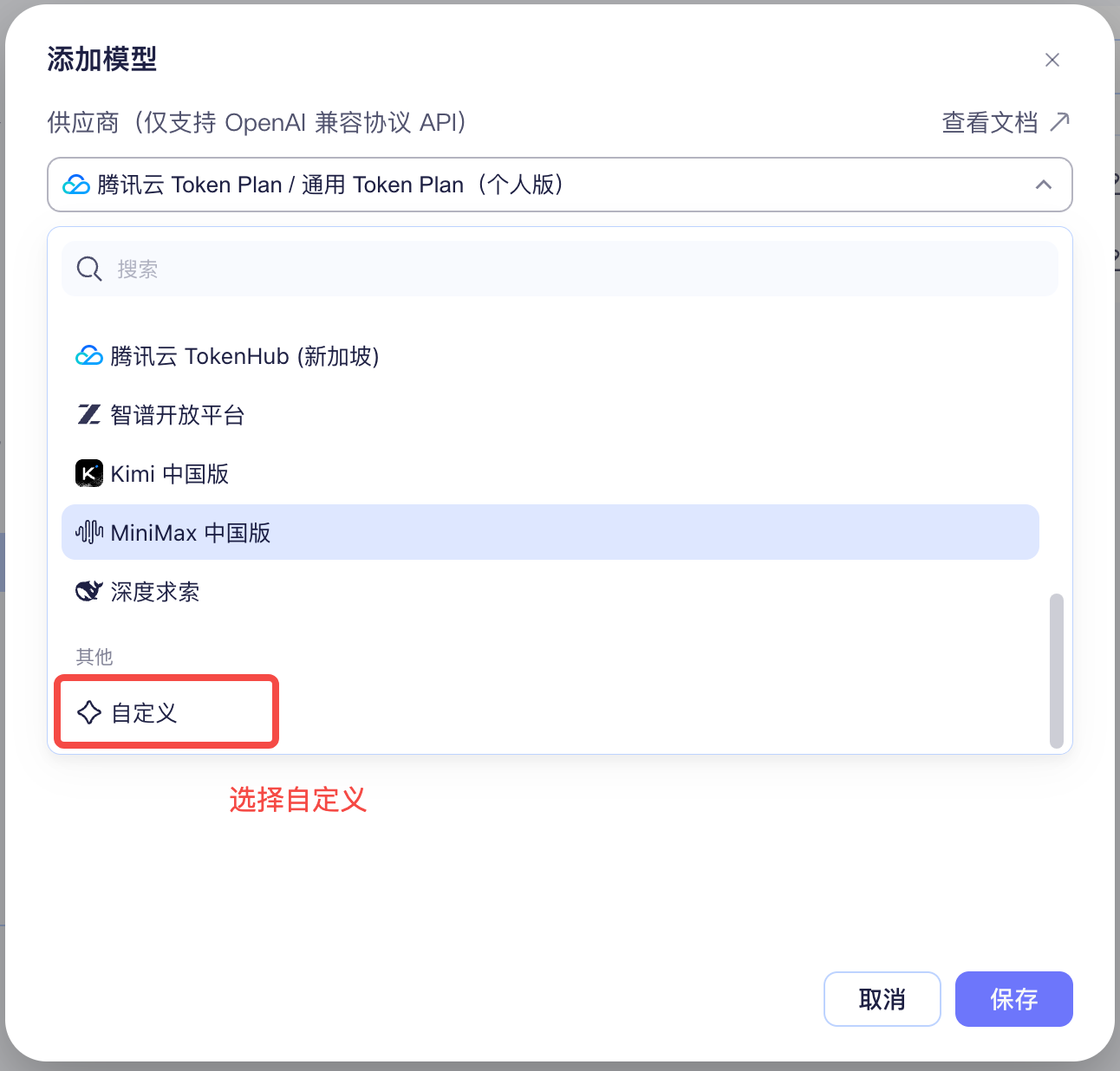
- Select Custom as the provider.
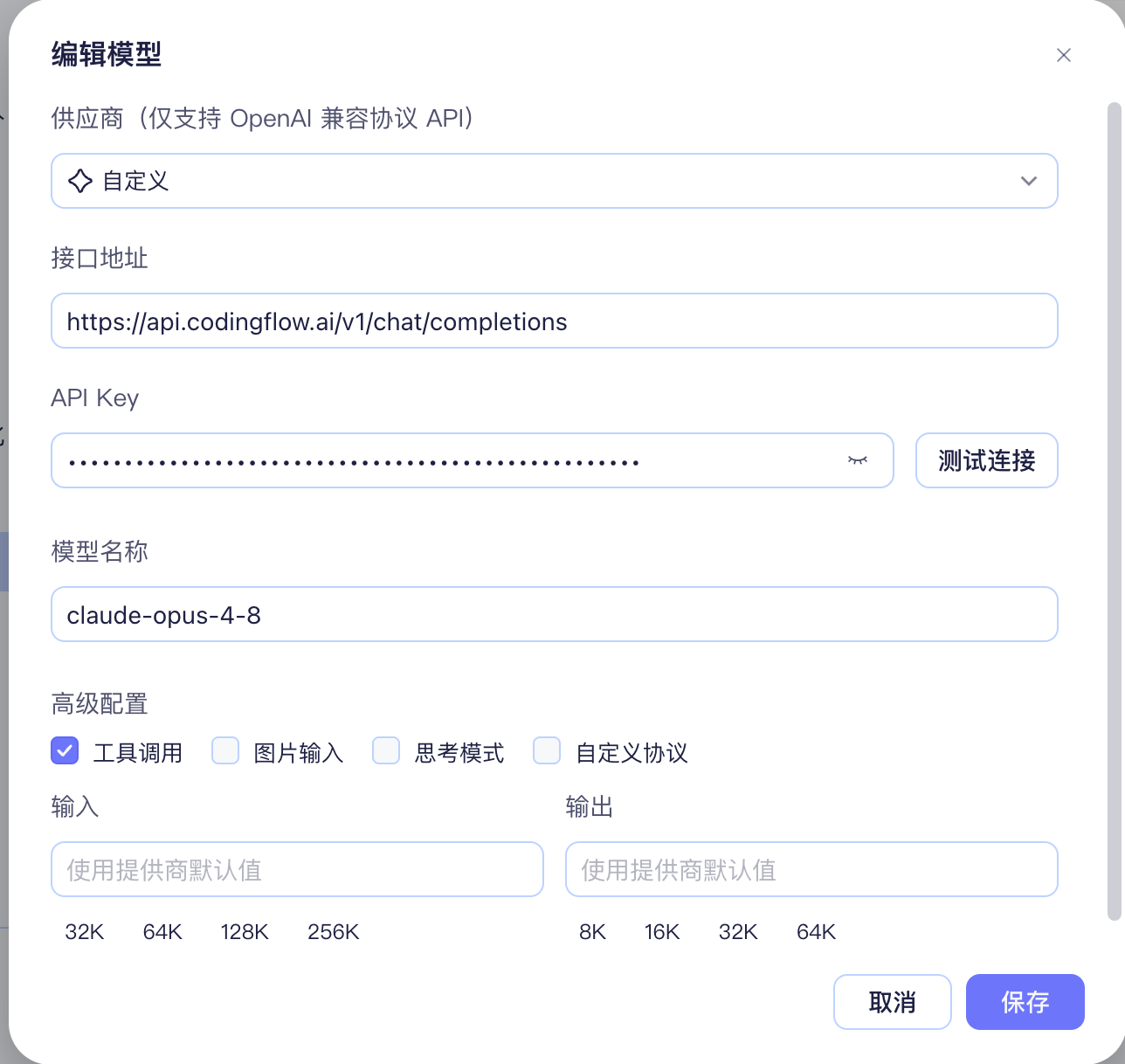
- Enter the URL, API key, and model name shown below.
| Setting | Value |
|---|---|
| URL | https://api.codingflow.ai/v1/chat/completions |
| API Key | Your Coding Flow API key |
| Model name | A model ID supported by Coding Flow, such as claude-opus-4-8 |
See the model list for supported model names.
URL requirements
- Enter the complete endpoint URL:
https://api.codingflow.ai/v1/chat/completions. - Keep Custom Protocol disabled to use WorkBuddy's supported OpenAI-compatible protocol.
- Do not enter a website or console URL.
- Do not add quotes, spaces, or line breaks before or after the API key.
Configure Model Capabilities
Configure the context window, maximum output length, tool calling, image input, and reasoning options according to the selected model's actual capabilities. Enabling unsupported capabilities may cause failed requests or incorrect output.
Click Test Connection after entering the settings. When the test succeeds, save the configuration and select the custom model in the model picker for a new task or conversation. Start with a short request and confirm that the response and Coding Flow quota usage are correct before running complex tasks.
Before You Start
- WorkBuddy stores custom model settings and API keys locally. Do not share the configuration file or commit it to Git.
- Custom model requests use your Coding Flow account or team quota, not the quota for WorkBuddy's built-in models.
- Conversation content is sent through WorkBuddy to the configured model service. Do not save API keys on untrusted devices.
- After changing the URL, API key, or model name, start a new conversation. If the changes still do not take effect, quit and restart WorkBuddy.
Troubleshooting
Model Not Found
Make sure the model name exactly matches a model ID in the Coding Flow model list. Do not use a display name or add a prefix.
Invalid Request URL or 404
Confirm that the URL is exactly https://api.codingflow.ai/v1/chat/completions and that Custom Protocol remains disabled. Do not append /v1 or /chat/completions twice.
401 or 403 Response
Check that the API key is complete and active and that the account or team has available quota. Remove any leading or trailing spaces and line breaks when copying the key.